
Contents of this guide
The shortlist
Our top 3 for design buyers

Design.com
AI logo starter
- Best for
- Beginners wanting a logo plus matching brand materials
- Features
- 4 noted: AI logos, Vector downloads, Brand starter, Browser editor

BrandCrowd
Designer-made templates
- Best for
- Beginners who want a designer-made starting point
- Features
- 4 noted: Designer templates, Vector exports, Mockups, Website builder

Canva
Template breadth
- Best for
- Beginners needing fast social posts, flyers and presentations
- Features
- 4 noted: Templates, Drag and drop, Mobile apps, Pro Brand Kit
Disclosure for this guide. All 10 tools here are unpaid editorial picks. The position of a paid listing can be part of what the vendor pays for. Paid and unpaid tools are scored on the same rubric and keep their cons. Details are in the advertising disclosure.
The ledger
Index of every tool
| Tool | Free plan | Trial | Rubric | Compare | ||
|---|---|---|---|---|---|---|
| 01 | Design.comBeginners wanting a logo plus matching brand materials | See websiteNot published | Yes | Free plan only | ||
| 02 | BrandCrowdBeginners who want a designer-made starting point | See websiteNot published | Yes | Free plan only | ||
| 03 | CanvaBeginners needing fast social posts, flyers and presentations | See websiteChecked Nov 25, 2026 | Free | Free trial available | ||
| 04 | Adobe ExpressSmall businesses wanting branded content with safe AI images | Premium US$9.99 per monthChecked Nov 25, 2026 | Free | 30-day free trial | ||
| 05 |  FigmaBeginners learning website and app interface design | Professional Full seat $16 per monthChecked Nov 25, 2026 | Starter Free | Free plan only | ||
| 06 |  VistaCreateBudget creators wanting templates plus built-in scheduling | See websiteNot published | Yes, includes Brand Kit | Free plan only | ||
| 07 |  PixlrQuick browser photo edits and AI image tools | Plus $2.49 per monthChecked Nov 25, 2026 | Yes, ad-supported with limited AI credits | Free plan only | ||
| 08 |  PhotopeaFree editing of PSD, AI and other professional formats | See websiteNot published | Yes, ad-supported | Free plan only | ||
| 09 |  GIMPFree, advanced photo editing on the desktop | See websiteNot published | Yes, fully open source | Free plan only | ||
| 10 |  InkscapeFree vector illustration, logos and icons | See websiteNot published | Yes, fully open source | Free plan only |
Prices are the lowest paid plan the vendor shows, read on November 25, 2026. Sort by price ranks published monthly figures; tools without one go last. Pin up to three tools to compare them side by side.
How this guide was put together
We scored each tool on five criteria: ease of use (25 percent), output quality (20 percent), export range (20 percent), brand support (15 percent), and cost clarity (20 percent). Ease of use covers how quickly a beginner can publish something useful. Output quality weighs whether the result looks ready for a customer, not just a draft. Export range checks the formats that matter for web, print and handoff. Brand support looks at whether colors, fonts and repeatable templates stay consistent. Cost clarity tracks how plainly the vendor presents free limits, trials and paid tiers.
We checked prices on vendor pricing pages on November 25, 2026. Where a page was empty or showed localized currency, we say pricing is on the vendor site and avoid a converted number. We do not treat a free plan as a trial, and we do not assume a paid tier includes features the vendor does not list. For each tool, the review names the beginner it fits and the limits that would send someone elsewhere.
The order is editorial: it reflects fit for the buyer described in each entry, plus the disclosed Featured position. It does not come from the scores or a weighted total. A Featured listing is a paid placement; it is scored with the same rubric and carries the same kind of honest cons as every other entry. We keep the scores as a quick read on specific criteria, not as a ranking mechanism. Where a tool is free and open source, we still check whether its interface, file support and learning curve suit a beginner.
The full process, including how we handle corrections, is on the methodology page. Paid listings follow the advertising disclosure.
Rubric and weights
Every tool below is scored from 1 to 10 on these five criteria. The scores describe each tool; the order is an editorial call on fit for the buyer each card describes, plus the disclosed Featured position.
- 25%Ease of useHow quickly a beginner can publish a useful file without formal training.
- 20%Output qualityWhether the result looks ready for a customer, not just a rough draft.
- 20%Export rangeThe formats that matter for web, print and handoff to another tool.
- 15%Brand supportHow well colors, fonts and repeatable templates stay consistent across files.
- 20%Cost clarityHow plainly the vendor presents free limits, trials and paid tiers.
Plate 01 of 10
Design.com
Best for beginners wanting a logo plus matching brand materials
Our verdict
Best for a beginner who needs a logo and matching brand basics, though the tool is browser-only and pricing needs confirmation.
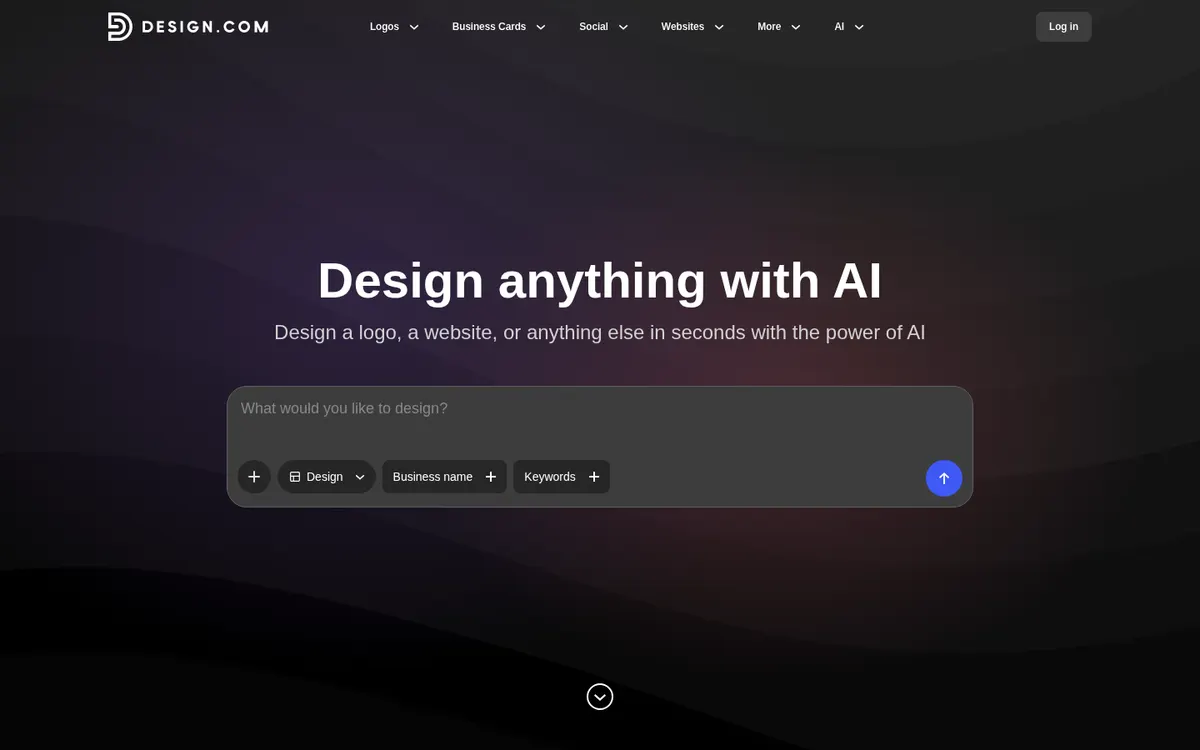
Design.com fits the beginner who has a business name and a rough idea, not a design brief. You enter the name and keywords, and the tool returns industry-matched logo concepts plus an editor for fonts, colors, icons, layouts and spacing. The editor runs in a browser and asks for no drawing skill. AI chat can adjust the icon and text, and the free plan includes customization and vector downloads in SVG, EPS and PDF with transparent backgrounds. That free path is the reason it sits near the top for a first logo.
The paid plans add unlimited logo changes and matching business cards, email signatures, letterheads and social posts. That bundle is the practical difference: a beginner can leave with a starter brand kit built from one color and font set rather than a lone logo file. The trade is scope. This is a brand starter tool, not a general design app, and it is browser-only, so there is no desktop or mobile app for offline work or phone edits. The browser-only setup also means there is no install step or update cycle before a quick first logo concept.
Pricing is on the vendor site. The pricing page was empty at check, so confirm current tiers and how annual billing is presented before you pay. The free plan includes logo customization and vector downloads, so a beginner can test the output before paying. Unlimited revisions and matching collateral are paid features. The custom-trained AI is described as copyright safe, but confirm the current terms and plan limits before commercial use.
What works
- Fast AI logo concepts
- Free vector downloads
- Matching brand starter kit
What to weigh
- Browser only
- Paid plan for unlimited changes
- Narrow brand scope
Pick it if
You want a logo and matching brand basics from a short brief.
Skip it if
Your work is photo editing, illustration or app screens.
Plate 02 of 10
BrandCrowd
Best for beginners who want a designer-made starting point
Our verdict
A strong pick for a designer-made template you can customize, with the caveat that the output builds on shared layouts.
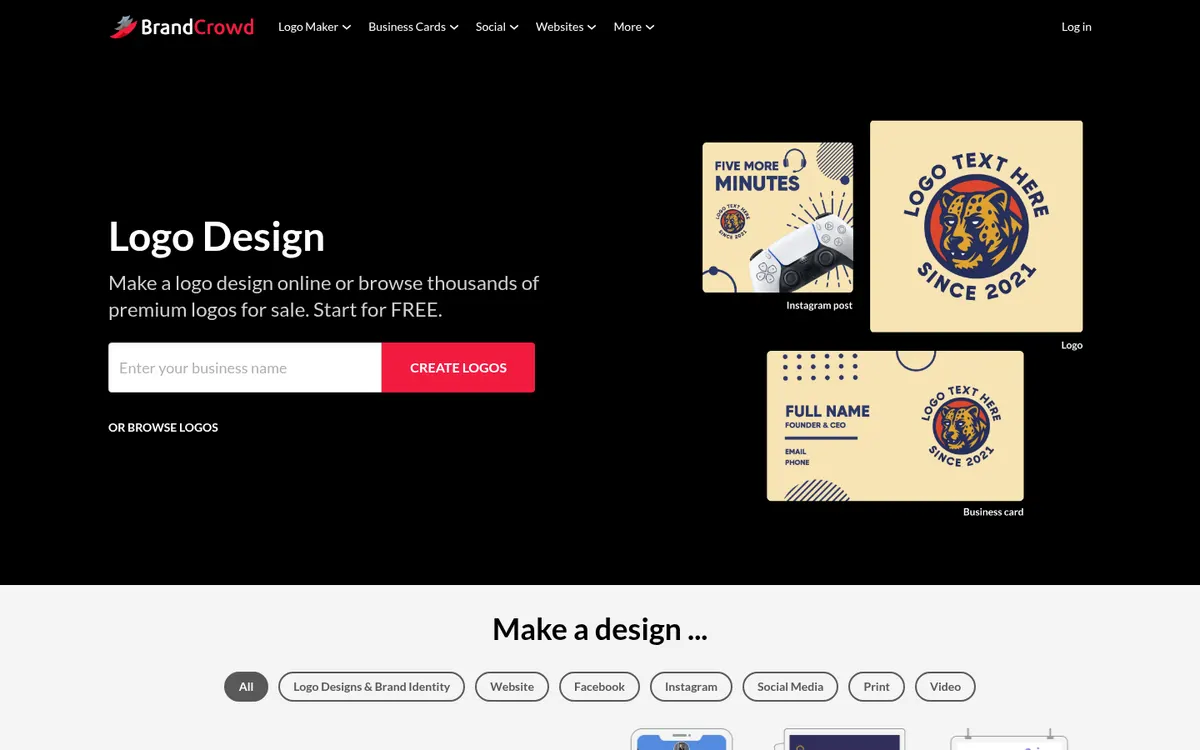
BrandCrowd is the better fit when you want a designer-made starting point, not a blank canvas. You give a business name and industry, and the tool matches you to logo templates created by professional designers. The range spans hundreds of thousands of templates across many industries, which helps when you do not know the right visual style. That matters for beginners who can recognize a balanced mark but cannot build one from scratch. The built-in editor covers fonts, colors, icons and layouts, and the free plan supports customization and vector downloads in SVG, EPS and PDF. Mockups show the mark on signage, apparel and marketing materials before you buy.
The weakness is originality. Output builds on shared templates, so a business in a crowded category may see similar layouts. For a beginner, the pre-balanced layouts reduce the risk of a wobbly first attempt. Higher tiers add matching business cards, social graphics and email signatures, plus a website builder. Those are useful for a full starter presence, but they are paid extras, not part of the free logo path. The tool is browser-only, with no desktop or mobile app.
Pricing is on the vendor site. The pricing page was empty at check, so confirm current tiers and whether annual billing is presented before you budget. The free tier covers browsing, editing and vector download of a logo. If you only need a quick mark and will never touch collateral, the free path may be enough for a while. Higher tiers are the right check if you need business cards, social graphics, email signatures or the website builder later.
What works
- Designer-made templates
- Vector exports on free plan
- Real-world mockups
What to weigh
- Shared template layouts
- Paid collateral and website builder
- Browser only
Pick it if
You want a designer-made logo template you can shape.
Skip it if
You need original illustration, photo editing or app interface design.
Plate 03 of 10
Canva
Best for beginners needing fast social posts, flyers and presentations
Our verdict
The fastest everyday choice for social posts, flyers and presentations, with brand controls reserved for the paid Pro plan.
Canva is the fastest route from a blank page to a publishable social post, flyer or presentation. The editor opens with preset canvas sizes, a large template and stock asset library, and drag-and-drop controls that do not assume design training. Beginners can pick a layout, swap text and images, and export without touching layers or vector paths. It works in a browser and on mobile apps, so a phone can handle a last-minute story graphic. The template range is the widest among the tools compared here.
The free plan covers everyday formats well enough to publish immediately. Pro adds the Brand Kit for consistent colors and fonts, one-click background removal, Magic Resize for reformatting, and an expanded stock library. Those are real time savers for a weekly publisher, but they are not required for a first project. Advanced photo editing is limited, and popular templates get reused by many users, so a brand can look familiar if you do not customize the layout. Free users still get a broad stock library, but the expanded stock sits on Pro. A beginner can publish immediately, but a brand will look more consistent with Pro.
Canva Pro is listed at BDT 400 per month with 50 percent off the first three months. The page shows localized BDT promo pricing, so no USD equivalent is provided. A free trial is available. Occasional designers can usually stay on the free tier; weekly publishers should compare against Adobe Express before paying. The Pro plan is the practical unlock for repeat brand work, not a requirement for a one-off flyer.
What works
- Huge template library
- Easy drag-and-drop editor
- Mobile and browser apps
What to weigh
- Brand Kit needs Pro
- Limited photo editing
- Templates can look reused
Pick it if
You need fast layouts across social, print and slides.
Skip it if
You need precise vector drawing or professional photo retouching.
Plate 04 of 10
Adobe Express
Best for small businesses wanting branded content with safe AI images
Our verdict
A low-cost branded content tool with free background removal and commercial AI, but a smaller template range than Canva.
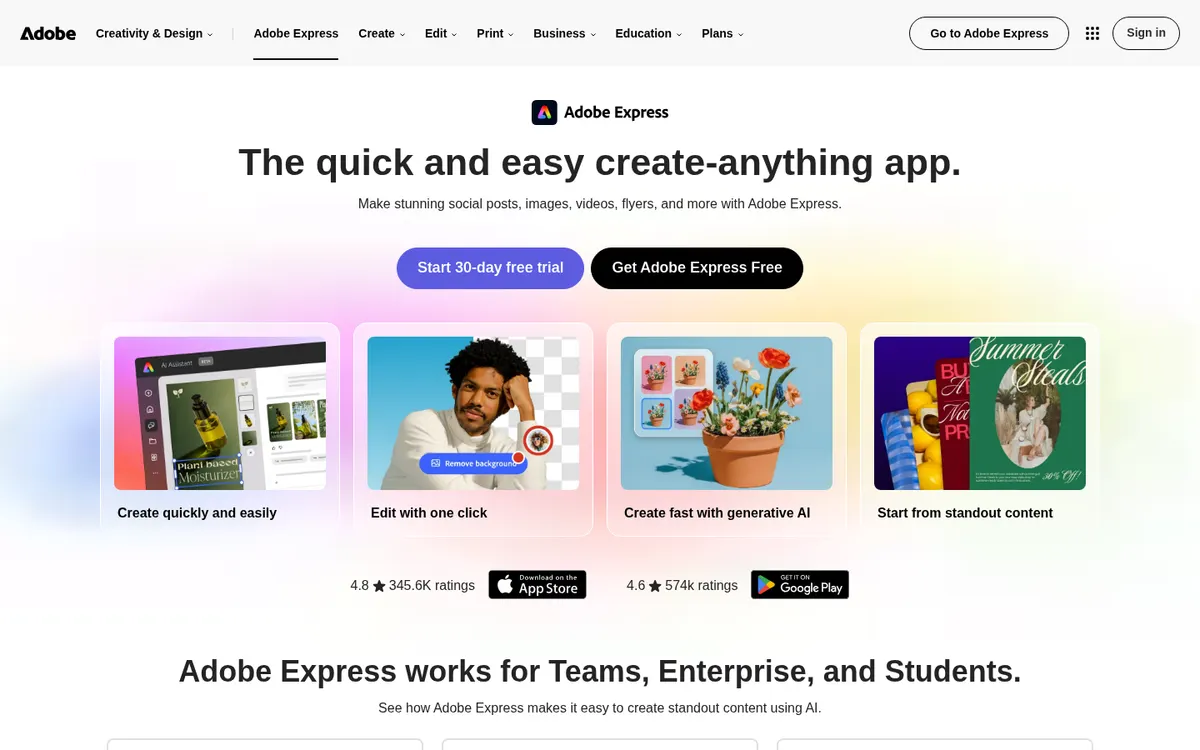
Adobe Express fits a small business that needs branded posts, flyers, short videos and simple photo edits without hiring a designer. The free plan includes background removal, which some rivals reserve for paid tiers, and the AI features are positioned for commercial use. You also get access to Adobe stock assets. The editor puts social posts, flyers, short video and simple photo edits in one place, so a beginner can stay in one browser tab. The trade is fewer layouts than the biggest template editor in this list. The free tier is not a demo.
Premium adds Brand Kits, one-click resize for multiple platforms, and the full premium template and asset library. That is the plan for a business publishing under one identity. The limits are real: resize and Brand Kit need Premium, the template range is smaller than Canva's, and some AI tools are desktop only. A beginner who wants a massive template catalog may find Canva easier, while a small team that cares about safe AI images may prefer Adobe Express. The free plan still covers a useful first project. For a small business, the brand controls matter more than a giant template count. That is the main trade.
Adobe Express Premium is US$9.99 per month, and a 30-day free trial is available. The price undercuts the comparable Canva plan. The free tier is not a demo; it includes background removal and commercially oriented AI, so test those features before paying. If you publish weekly, the Brand Kit and resize alone justify a close look at Premium. A one-off project can stay free.
What works
- Free background removal
- Commercial-use AI focus
- Lower premium price
What to weigh
- Smaller template range
- Resize needs Premium
- Some AI desktop only
Pick it if
You need branded content with safe AI images and a modest price.
Skip it if
You need the widest template library or all AI tools in the browser.
Plate 05 of 10
Figma
Best for beginners learning website and app interface design
Our verdict
The right learning tool for interface design, though free file caps and a screen-first focus limit casual beginners.
Figma is the right beginner tool when the goal is a website or app interface, not a flyer. It puts frames, components and prototyping on one canvas, and real-time collaboration lets a mentor watch and comment live. The community library supplies UI kits, icons and wireframes, so a beginner can study a working file instead of guessing at spacing. Those skills map directly to interface design and design jobs. Presentation layouts are possible, but the tool is built around screens. A beginner can learn by opening a shared file and changing one component.
The free Starter plan covers the fundamentals and is not a trial. The catch is a cap on active design files, so learners must archive work as they go or hit a wall during a course. There is no print template library or photo editing suite, and interface design carries its own learning curve. A beginner who wants a poster by Friday will be faster in Canva. A beginner who wants to understand components, prototyping and handoff will get more from Figma. The collaboration is useful for a class or a mentor session, not just a team.
Figma Professional Full seat is $16 per month. Lower Collab and Dev seats are also listed, but the full seat is the one a designer needs. The free Starter plan is enough to learn core skills before paying. Pair Figma with a template tool for everyday marketing graphics. Check the seat type before you buy, because the lower seats are not full designer seats. That is enough for a first course.
What works
- Real-time collaboration
- Strong UI learning path
- Free Starter plan
What to weigh
- Active file cap
- No print templates
- Steep interface learning
Pick it if
You want to learn interface design with live feedback.
Skip it if
You need print templates, photo editing or a same-day poster.
Plate 06 of 10
VistaCreate
Best for budget creators wanting templates plus built-in scheduling
Our verdict
A budget-friendly template editor with a free Brand Kit and built-in scheduling, though pricing needs confirming on the vendor site.
VistaCreate is a budget-minded template editor with one feature that stands out for beginners: Brand Kit is available on the free plan. That means a beginner can set colors and fonts and reuse them without paying, which is unusual next to Canva and Adobe Express. The library covers thousands of templates for social, web and print formats, and the editor includes built-in social scheduling. A creator can design a post and schedule it without opening a separate publishing tool.
Pro adds one-click resize, background removal, and the full photo, video and vector stock library. Those are the features a frequent publisher will miss on the free plan. The tool is otherwise friendly and simple, but it has a smaller community than Canva, so troubleshooting takes longer. Print options depend on VistaPrint, which matters if you want a fully independent print workflow. The free plan is still a real starting point, not a watermark-only preview. The scheduling feature is the practical reason to choose it over a plain template editor today.
Pricing is on the vendor site. The pricing page was empty at check, so confirm current tiers and annual billing before you budget. The notes from the check mention an entry tier that was cheaper than Canva Pro on annual billing, but that comparison needs confirmation on the live site. Formerly known as Crello, the tool is aimed at budget-conscious creators who publish often.
What works
- Free Brand Kit
- Built-in scheduling
- Budget-friendly templates
What to weigh
- Pro features behind paywall
- Smaller community
- Print tied to VistaPrint
Pick it if
You want free brand controls plus scheduling in one place.
Skip it if
You need a large support community or independent print options.
Plate 07 of 10
Pixlr
Best for quick browser photo edits and AI image tools
Our verdict
A low-cost browser photo editor for cleanup and AI edits, with ads and credit limits on the free plan.
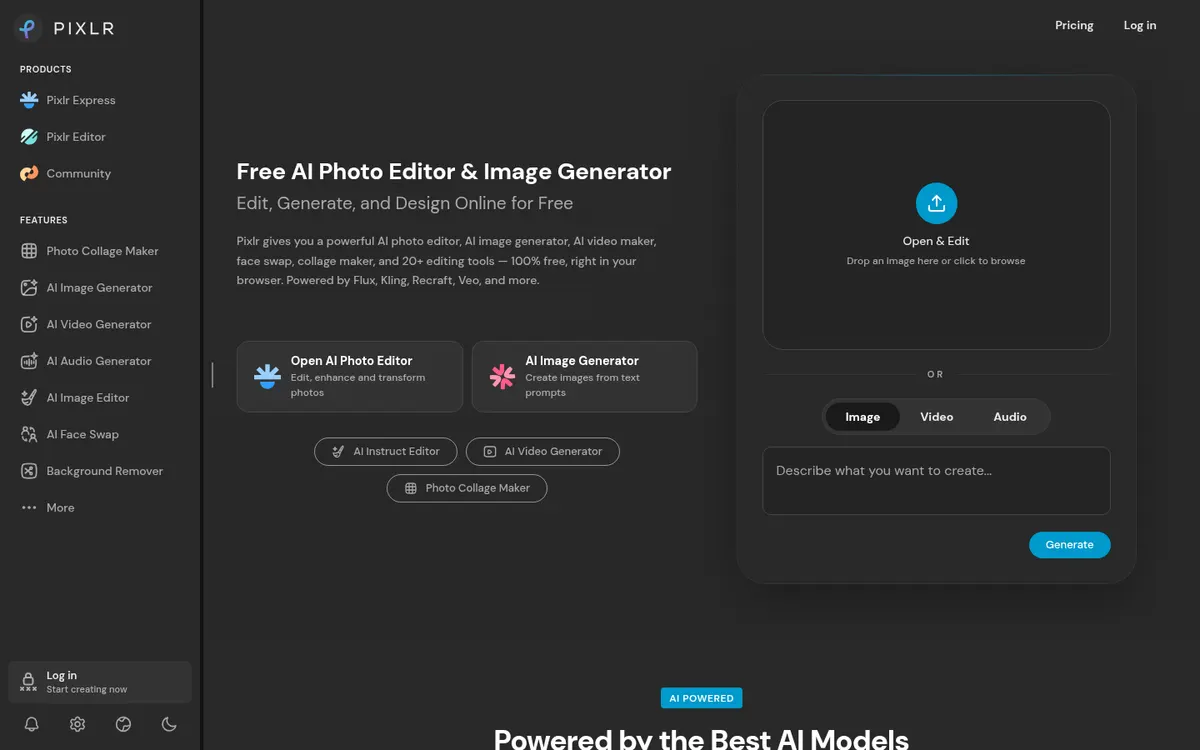
Pixlr is the quick browser stop for photo cleanup and AI edits when you do not want to install anything. It has layers and masks, filters and retouching tools, AI background removal, generative fill, image expansion, text-to-image generation and collage creation. A beginner can open a photo, remove a background, expand the canvas or clean up a product shot without learning a full desktop editor. Layers and masks give more control than template editors, which helps when the task is photo-first.
The free plan is ad-supported and includes limited AI credits, so it is best for a trial or light use. The interface feels busy for first-time users, and the AI tools can run out of credits before a project is done. This is not a template library for social posts, and it is not a vector logo tool. It is a focused photo editor with AI extras. For a beginner who mostly needs background removal and quick retouching, that focus is useful.
Pixlr Plus is $2.49 per month. The notes say paid plans begin at $1.99 per month with annual billing, but the page displayed the monthly Plus price and not the annual rate. Confirm the billing terms before you subscribe. The free plan is still enough to test the AI tools and see whether the credit limit fits your workload.
What works
- Low entry price
- Layers and masks
- AI photo tools
What to weigh
- Ads on free plan
- AI credit limits
- Busy interface
Pick it if
You need quick browser photo edits and AI cleanup.
Skip it if
You need templates, vector logos or a calm first-time interface.
Plate 08 of 10
Photopea
Best for free editing of PSD, AI and other professional formats
Our verdict
A free browser editor that opens professional formats and keeps files local, but it is not a template starter.
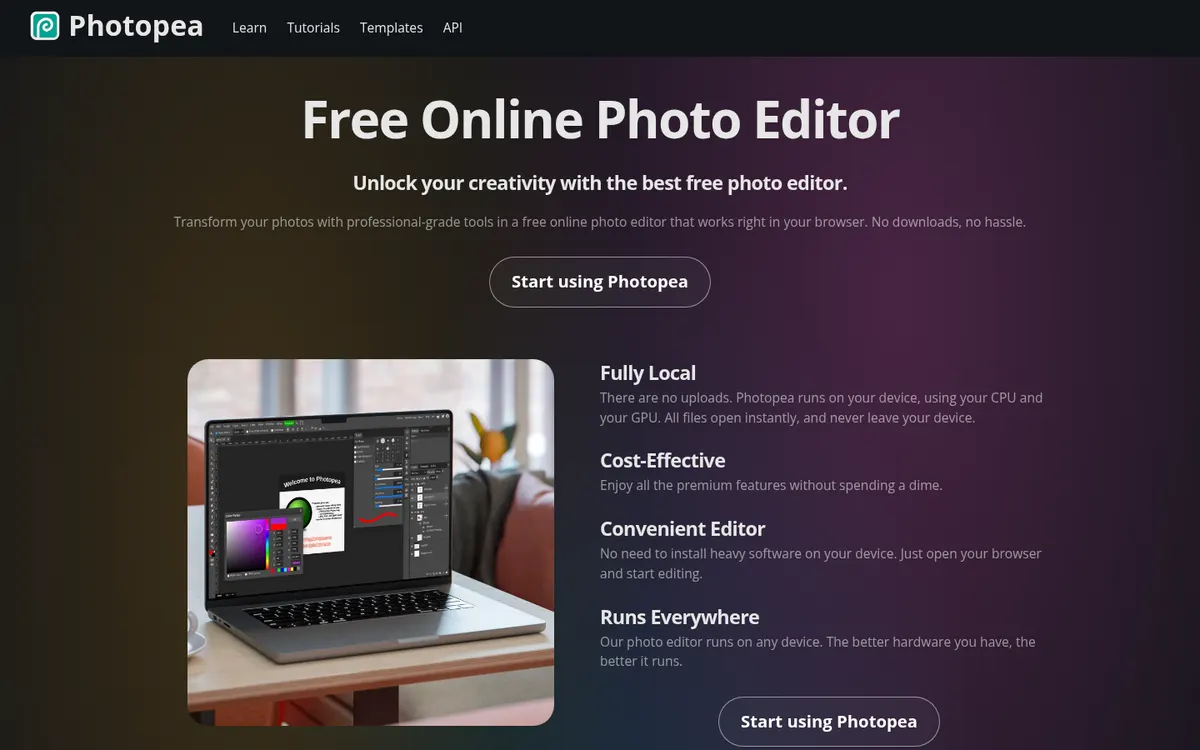
Photopea is the free browser editor for beginners who receive professional files. It opens and saves PSD files, supports AI, SVG and RAW camera formats, and includes layers, masks, smart objects and adjustment layers. The interface and shortcuts follow the Photoshop style, so many tutorials translate. That makes it a practical bridge for a beginner who needs to open a client file, hide a layer or export a web image without buying a desktop suite. It runs entirely in the browser and processes files locally, so work stays on the device. The local processing is a real difference.
The trade is that it is an editor, not a design starter. There is no template library, and the dense interface needs time to learn. A beginner who wants a flyer by lunch will be faster in Canva. A beginner who needs to open a PSD, edit a RAW photo or handle an AI file will find Photopea more useful than most free browser tools. The free version is ad-supported. That ad support keeps the cost at zero, but it also means the workspace is not completely quiet. It is a file utility first, so expect to bring your own layout and art direction.
There is no official pricing page to check. The tool costs nothing to use and opens formats that most free browser editors cannot. Because files stay local, it is a reasonable option for client files when you cannot upload them. It complements a template tool rather than replacing one. Keep a copy on your device as well, and check the file before handoff.
What works
- Opens PSD and AI files
- Local file processing
- Free browser access
What to weigh
- Ads on free version
- No template library
- Dense Photoshop-style UI
Pick it if
You need free access to PSD, AI, SVG or RAW files.
Skip it if
You want templates, guided layouts or a simple first interface.
Plate 09 of 10
GIMP
Best for free, advanced photo editing on the desktop
Our verdict
A free desktop editor with deep photo tools and a steep learning curve, best for patient beginners.
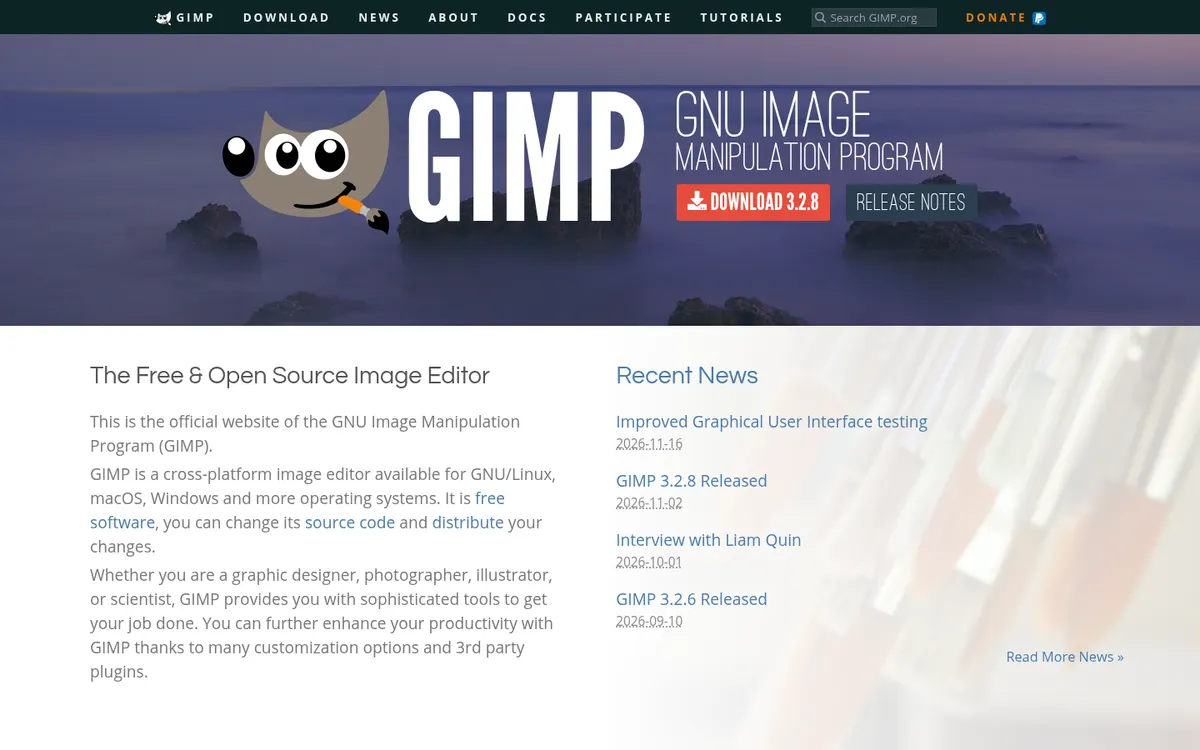
GIMP is the free desktop editor for a beginner who is willing to trade convenience for depth. It handles high-quality photo retouching and restoration, compositing, original artwork and color management suited to print work. Plugins and scripts extend it, and it runs on Windows, Mac and Linux. The open-source codebase means no subscription and no feature gate on the core editor. A beginner who puts weekends into layers, masks and selections can build skills that carry into paid work.
The costs are time and patience. The learning curve is steep, the interface feels dated next to browser editors, and there is no cloud sync or template library. This is a poor fit for a quick social graphic. It is a strong fit for a user who wants to restore a family photo, composite images or learn professional retouching without a monthly bill. The tool rewards deliberate practice rather than a one-click result. That is a fair trade for a free desktop tool.
There is no official pricing page to check. GIMP is free and open source on all major desktop systems. The plugin and script community is large, but a beginner should expect to follow tutorials before the interface makes sense. Pair it with Inkscape for vector work and a template editor for everyday layouts. Keep the budget at zero and the learning time realistic.
What works
- Completely free
- Deep photo tools
- Plugin community
What to weigh
- Steep learning curve
- Dated interface
- No cloud sync
Pick it if
You want free, deep photo editing on the desktop.
Skip it if
You need speed, templates or cloud collaboration.
Plate 10 of 10
Inkscape
Best for free vector illustration, logos and icons
Our verdict
A free vector tool for logos and illustrations, with strong SVG support but a desktop-only workspace.
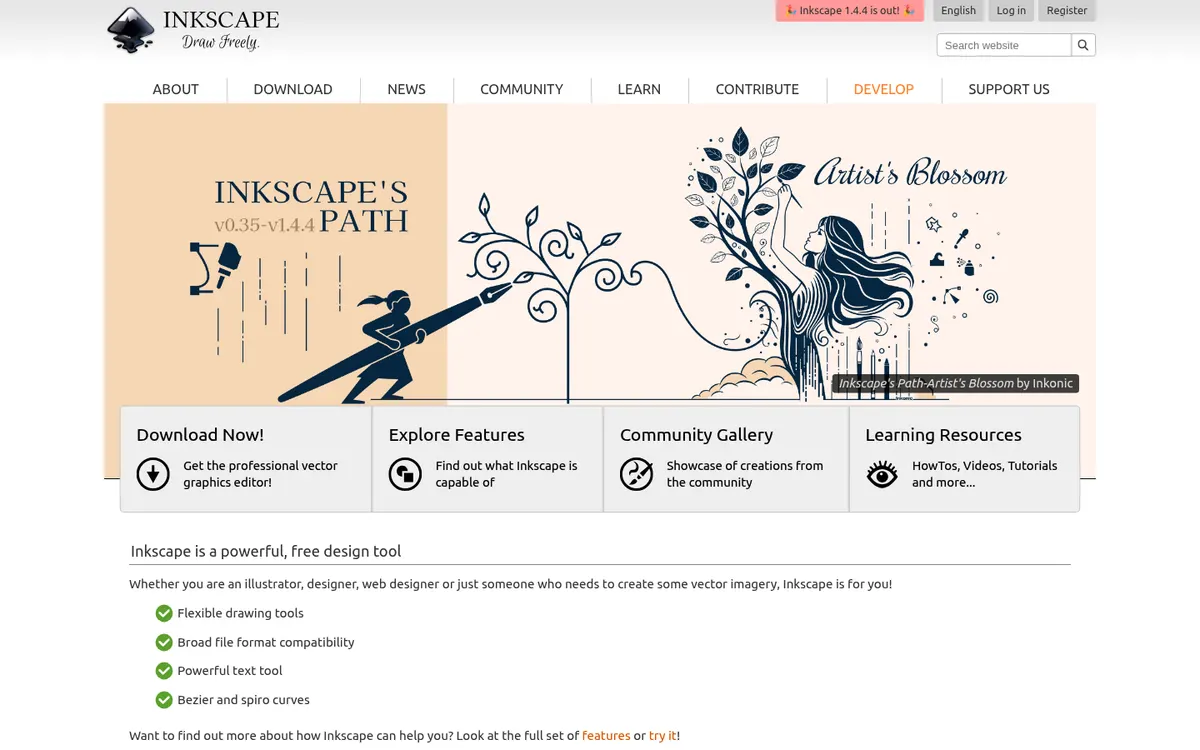
Inkscape is the free vector tool for a beginner who wants to draw logos, icons and illustrations that scale cleanly. It supports vector shapes, curves and text, with Bezier and spiro curve tools, native SVG support and broad format handling. Node, path and fill editing give full control over the artwork. A logo built in Inkscape can export to web, print and signage without redrawing. It runs as a desktop application on Windows, Mac and Linux.
The limits are clear. It is desktop only, with no browser version. Vector drawing takes sustained practice, and the tool does not include photo editing or a template library. A beginner who wants a logo in an afternoon may prefer Design.com or BrandCrowd, then open the vector in Inkscape for refinement. A beginner who wants to learn vector craft will find a capable free tool with a community that shares techniques and extensions. The first curves will be messy; that is part of the learning.
There is no official pricing page to check. Inkscape is free and open source. Its native SVG support is useful for web work, and broad format handling helps with print and signage exports. Keep a vector master file so you do not rebuild the mark for every medium. A clean master file saves hours when a sign shop or printer asks for a different size.
What works
- Free vector editor
- Native SVG support
- Strong Bezier tools
What to weigh
- Desktop only
- Practice required
- No photo editing
Pick it if
You want free vector illustration and logo control.
Skip it if
You need browser access, templates or quick photo edits.
What is a beginner graphic design tool, and what does it cover?
A beginner graphic design tool is software that helps someone with no formal training produce a usable file, whether that file is a logo, a social post, a flyer, a photo edit or a simple app screen. The category is broad because the jobs are different. A template editor is not a vector drawing app, and a logo generator is not a photo retoucher. The right first tool depends on the output you need this week.
Most beginner tools fall into five groups. Template editors such as Canva, Adobe Express and VistaCreate start from preset layouts and canvas sizes. Logo and brand starters such as Design.com and BrandCrowd turn a name and industry into concepts, then add matching collateral. Interface tools such as Figma teach frames, components and prototypes for websites and apps. Photo editors such as Pixlr and Photopea handle layers, masks and background removal in a browser. Desktop open-source tools such as GIMP and Inkscape cover advanced retouching and vector illustration without a subscription.
The common thread is a lower barrier to a finished file. Good beginner software hides complex panels until you need them, offers templates or AI suggestions, and exports formats that other people can open. That last point matters. A logo that only exists as a screenshot is not a usable logo. A vector file in SVG, EPS or PDF can scale to a sign or a business card. A PSD file can go to a print shop. A browser editor that keeps files local can protect client work.
Beginners should also expect limits. Free plans often carry ads, AI credits, active file caps or watermarks. Paid tiers add brand controls, resizing, unlimited changes or matching collateral. The best choice is the tool whose limits do not block your first ten projects. If you need a logo and business cards, start with a brand tool. If you need a week of social posts, start with a template editor. If you want to learn interface work, start with Figma and accept the learning curve.
This guide sits in the Design collection. Buyers weighing nearby tools often read the guides to 1099 filing software and AI-powered video ad editing software next.
How do beginner design tools charge in 2026?
Pricing in this category is mostly free tier plus subscription, with open-source exceptions. The direct answer is that a beginner can start for nothing, but the useful unlocks, such as brand controls, resizing, unlimited logo changes or matching collateral, usually sit on a paid plan. Check the billing period and the feature list, not just the headline number.
| Model | How it bills | Typical fit | Example from this list |
|---|---|---|---|
| Free plan | No charge, sometimes ad-supported or credit-limited | Testing a tool or light publishing | Photopea is ad-supported; GIMP and Inkscape are open source |
| Monthly subscription | Billed each month at the listed rate | Short projects or flexible use | Adobe Express Premium is US$9.99 per month; Figma Professional Full seat is $16 per month |
| Annual subscription | Billed yearly, often shown as a monthly equivalent | Committed weekly publishing | Design.com and BrandCrowd plan notes mention annual billing; confirm on the vendor site |
| Localized promo | Shown in local currency with a discount period | Regional buyers who can use the offer | Canva Pro is listed at BDT 400 per month with 50 percent off the first three months |
Design.com, BrandCrowd, VistaCreate, Photopea, GIMP and Inkscape use See website or no official pricing page in this check, so pricing is on the vendor site and no converted number is given. Pixlr starts at $2.49 per month for Plus, with notes of a $1.99 annual rate that was not displayed. Adobe Express includes a 30-day free trial. Canva offers a free trial. Figma's free Starter plan is not a trial, and its file cap matters.
Before paying, match the plan to the output: vector downloads for logos, Brand Kit for repeat colors, resize for multiple platforms. A free plan can be enough for a trial period, but not always for client work.
Every price in this guide was read on the vendor's own pricing page on November 25, 2026. Where a vendor does not publish a figure we could confirm, the card says "See website" rather than a guess. For the arithmetic around this purchase, try the free Email campaign metrics calculator.
Which beginner design tool should you open first?
- Name the output first. If you need a logo and matching basics, test Design.com or BrandCrowd. If you need social posts, flyers or slides, open Canva. If you need app or website screens, choose Figma.
- Run a free test with a real file. Use the free plan or trial to build one asset you would actually publish. Check whether the export is clean, whether the font or stock image is locked, and whether a watermark appears.
- Check the export formats before you invest time. For a logo, look for SVG, EPS or PDF vector downloads. For photo handoff, PSD support matters. For social posts, a PNG or JPG at the platform size is enough.
- Test brand consistency on a second design. A Brand Kit is free in VistaCreate and paid in Canva and Adobe Express. Design.com and BrandCrowd add matching collateral on paid tiers. Make one post and one card to see if colors and fonts hold.
- Read the AI terms before commercial use. Adobe Express says its AI features are built for commercial use; Design.com describes its custom-trained AI as copyright safe. For any tool, confirm the license covers ads, client work and the places you will publish.
- Budget for the unlock you need. Canva Pro is listed at BDT 400 per month with 50 percent off the first three months. Adobe Express Premium is US$9.99 per month. Figma Full seat is $16 per month. Check vendor pages for current tiers.
What mistakes should beginners avoid when choosing a design tool?
- Paying before you export a test file. A polished editor can hide locked fonts, watermarks or a paid export button. Build one real asset on the free plan, download it, and open the file on another device before you enter card details.
- Treating a free plan as a trial. A free plan may be permanent but limited, while a trial is time-boxed. Adobe Express offers a 30-day trial and Canva offers a free trial; Figma's Starter plan is free with active file caps, not a trial.
- Using a raster logo for signage. A PNG or JPG can look fine on a phone and fail on a banner. Ask for SVG, EPS or PDF vector downloads before you approve a logo, then keep that master file safe.
- Ignoring file and credit limits. Figma's free Starter plan caps active files, Pixlr's free plan limits AI credits, and Canva's free plan lacks Brand Kit. Map those limits to your next month of work, not just today's test.
- Skipping license checks for AI images. AI output can be fine for a mockup and wrong for an ad. Confirm that the tool's terms cover commercial use, client work and the channels you plan to use, and keep a record of the settings.
10 best graphic design tools for beginners 2026: questions
Which tool is the easiest first choice for a beginner?
Canva is the easiest first choice for most beginners because it opens with preset canvas sizes, templates and drag-and-drop controls for social posts, flyers and presentations. If your goal is a logo, start with Design.com or BrandCrowd instead. If you want to learn app or website screens, Figma is the better fit, but expect a learning curve.
Can free and open-source tools produce professional results?
Yes, free and open-source tools can produce professional results when the output matches the job. GIMP handles advanced photo retouching and compositing, while Inkscape handles vector illustration, logos and icons. Photopea opens PSD, AI, SVG and RAW files in a browser for free. The catch is learning time: GIMP and Inkscape have steeper curves than template editors, and neither includes a template library.
Do you need Photoshop and Illustrator to start?
No. You can start with a template editor, a logo generator, or a free open-source tool. Canva, Adobe Express and VistaCreate cover social posts, flyers and presentations. Design.com and BrandCrowd cover logos and starter brand materials. GIMP and Inkscape cover advanced photo and vector work without a subscription. Photoshop and Illustrator are not required for a beginner's first projects, though professional handoff files still matter.
Which export formats and pixel dimensions should beginners use?
Use the format the destination needs, not one universal setting. For logos, ask for SVG, EPS or PDF vector downloads so the mark scales. For photo handoff, PSD support matters. For social posts, start from the platform's current upload size and use resize tools on Canva Pro, Adobe Express Premium or VistaCreate Pro. This list does not publish a fixed pixel chart, so check the platform before exporting.
How do you keep colors, fonts and spacing consistent?
Start with one color and font set, then reuse it through a Brand Kit or a saved template. VistaCreate includes a Brand Kit on the free plan. Canva and Adobe Express put Brand Kits on paid plans. Design.com and BrandCrowd build matching collateral from a starter brand set on paid tiers. Build a second design before you commit, so you can see whether the spacing and type still hold.
What should you check before using AI images in ads or client work?
Check the commercial terms first, then the specific output. Adobe Express says its generative AI features are built for commercial use. Design.com describes its custom-trained AI as copyright safe. For any tool, confirm that the license covers ads, client work and your publishing channels, and keep a record of prompts or settings. A free AI credit limit does not settle the license question.